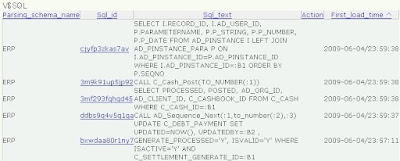
インストール、動作確認

Acceptance Testing
2.2 Administration master data 2.3 Accounting 2.5 Procurement management 仕入れ 2.6 Sales Management 2.7 Production management
Installation and setup of Eclipse IDE
ラベル Acceptance_Testing Procurement Management の投稿を表示しています。 すべての投稿を表示

5/29/2009

Pay the Purchase Invoice

5. Pay the Purchase Invoice 
  • Short description:Test the cash journal using the payment that is above
  • Steps:
    • Login as userA
    • Go to Financial management->Receivables and Payments->Transactions->Cash journal
    • Click New, fill the mandatory fields and save
    • Move to Lines Tab
    • Click New and select Cash Type: Debt-Payment
    • Click on Payment icon and:
      • Business partner: VENDOR A
      • Unmark Receipt check
      • Be carefully with the dates. You will only see the payment within the correct ranges
      • Click Search and mark the payment. Click OK
    • Verify the Amount field is filled with the amount of the payment
    • Go back to header and process
    • Click "Not posted"
    • Verify the journal entry is correct
  • Issues to verify:When you process a Cash journal, a Settlement is created in order to cancel the payment. To verify this:
    • From the Cash journal window move to Lines tab
    • Select one line and click "Linked Items"
    • You must see the link "Settlement - Cancelled Payments". Click it
    • You must see the link of the payment. Click it
    • You must browse to Cancelled Payments tab


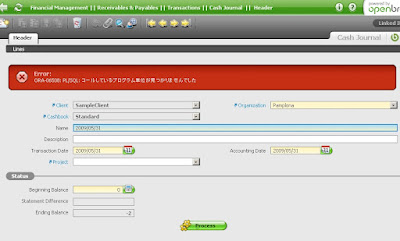
ora-6508 が発生するケースあり。( C_CASH_POST )


Accounting Purchase Invoice 仕入仕訳

4. Accounting Purchase Invoice 
  • Short description:Accounting the above purchase invoice
  • Steps:
    • Login as userA
    • Go to Procurement management->Transactions->Purchase invoice
    • Being in edit mode click "Not Posted" and click OK
    • Verify the created journal is correct


  • Additional data: If you cannot see the button "Not Posted" please go to General setup->Application->Session Preferences. Mark "Show accounting tabs" and then click "Save preferences". Doing this you will be able to enter in the book


Create Purchase Invoice 仕入れ明細請求

  • Short description: Testing the button 'Create lines from' and the way of creating purchase invoices
  • Steps:
    • Login as userA
    • Go to Procurement management->Transactions->Purchase invoice
    • Click New and select Transaction Document= AP Invoice[買掛]
    • Select the business partner using two possibilities:
    • A.- Click on the bp icon and verify:
      • When you click the bp icon a pop-up window must show up and the radio button 'provider' must be checked. Please select VENDOR A
    • B.- Or write in the bp box VA and verify:
      • A pop-up window doesn't show up and the bp box is filled with the name VENDOR A
    • For both cases verify:
      • Invoice from: "Pamplona, Street Purchase center nº1"
      • The combo box User/Contact must have the value: John
      • Price list: PURCHASE
      • Form of payment: Wire Transfer
      • Payment terms: 90 days
    • Click on button 'Create lines from' and verify:
      • Business partner: VENDOR A
      • In the "Order" combo box there is the purchase order
      • In the "Shipment" combo box there is the good receipt
    • Select the good receipt and click OK
    • Move to Lines and verify:
      • Product: A Raw material
      • Taxes: VAT 10%
      • The box "Purchase Order Line" is filled properly
      • The box "Shipment/Receipt Line" is filled properly
    • Go back to Header and click Complete
    • Move to Payments and verify:
      • Due Date 90 days after the invoice date
      • Form of Payment: Wire transfer


ORA-6508 で完了できず。 データの問題か?
0005111: Oracle error after completing a purchase invoice


C_INVOICE_POST.xml の改訂履歴 を確認した範囲でもこの不具合は報告されていない。
C_INVOICE_POST Procedure の再作成により動作するようになる。


Create Goods receipt 入庫処理

2. Create Goods receipt 
  • Short description: Testing the button 'Create lines from' and the way of creating goods receipt
  • Steps:
    • Login as userA
    • Go to Procurement management->Transactions->Goods receipt
    • Click new and select VENDOR A as a business partner. Save
    • Click on button 'Create lines from' and verify:
      • Business partner: VENDOR A
      • In the "Order" combo box there is the purchase order
    • Select the purchase order
    • Select a warehouse position
    • Select the purchase order line
    • Click OK
    • Move to Lines
    • Click on Attribute set value icon and fill the values and click OK
    • Go back to header and Complete

Create a purchase order

1. Create a purchase order 
  • Short description:Create an order to be used when creates a good receipt
  • Steps:
    • Login as userA
    • Go to Procurement management->Transactions->Purchase Order
    • Click New and two possibilities:
    • A.- Click on the bp icon and verify:
      • When you click the bp icon a pop-up window must show up and the radio button 'provider' must be checked. Please select VENDOR A
    • B.- Or write in the bp box VA and verify:
      • A pop-up window doesn't show up and the bp box is filled with the name VENDOR A
    • For both cases verify:
      • Invoice from: "Pamplona, Street Purchase center nº1"
      • The combo box User/Contact must have the value: John
      • Price list: PURCHASE
      • Form of payment: Wire Transfer
      • Payment terms: 90 days


Vendor が設定されていないと Business Partner に表示されない。


Product を選択する際の Price List は "Pruchase -EUR" を選択しないと A Raw material が表示されない。


  • Move to tab Lines and click New. There are two possibilities:
  • A.- Click on the product icon and verify:
    • When you click the product icon a pop-up window must show up.
    • The price list combo must be filled with the value Purchase
    • When click Search only 3 products must appear: A Raw material, B Raw material, C Raw material. Select A Raw material
  • B.- Or write in the product box RMA and verify:
    • A pop-up window doesn't show up and the product box is filled with the name Raw material
  • For both cases verify:
    • UOM:Unit
    • Unit price:2
    • List price:2
    • Tax:VAT 10%
  • Fill in Ordered quantity= 1
  • Move to header and complete. Verify:
    • Summed Line Amount= 2
    • Grand Total Amount= 2.2
Complete しても Grand Total Amount= 2 となり 2.2 とはならず。

2.5 Procurement management

2.5 Procurement management